Flotiq MCP Server
The Flotiq MCP Server lets AI assistants - like ChatGPT, Claude, GitHub Copilot or Codex - read and modify content in your Flotiq account. It implements the Model Context Protocol, an open standard for connecting language models to external data sources and tools.
Instead of copying content between your CMS and a chat window, you can simply ask:
- "How many products do I have in Flotiq?"
- "Create a blog post about our new pricing and leave it as a draft."
- "Find all events without a cover image."
Server URL
Use the following address wherever your client asks for an MCP server URL:
https://mcp.flotiq.com/mcp
The server uses the streamable HTTP transport.
Authentication
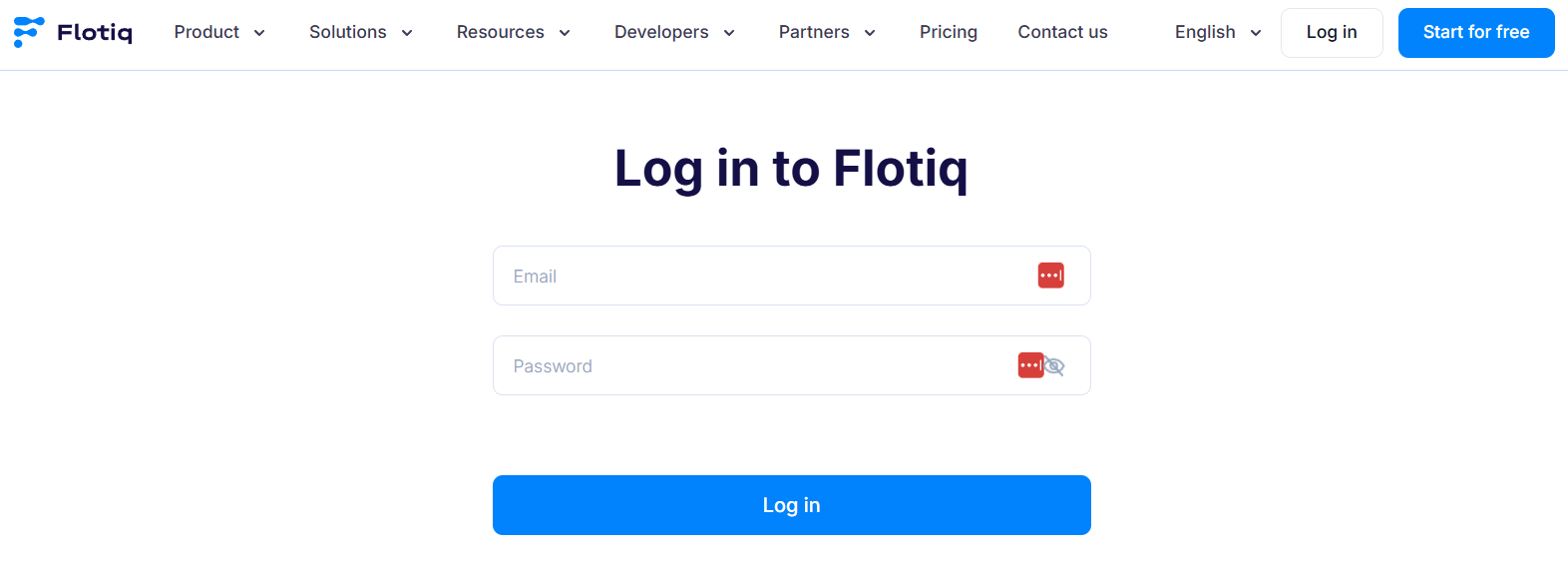
The server authenticates with OAuth 2.1 - you do not need to create or paste an API key. When you connect the server for the first time, your client opens a Flotiq login page:
After signing in, Flotiq asks what the client may access:
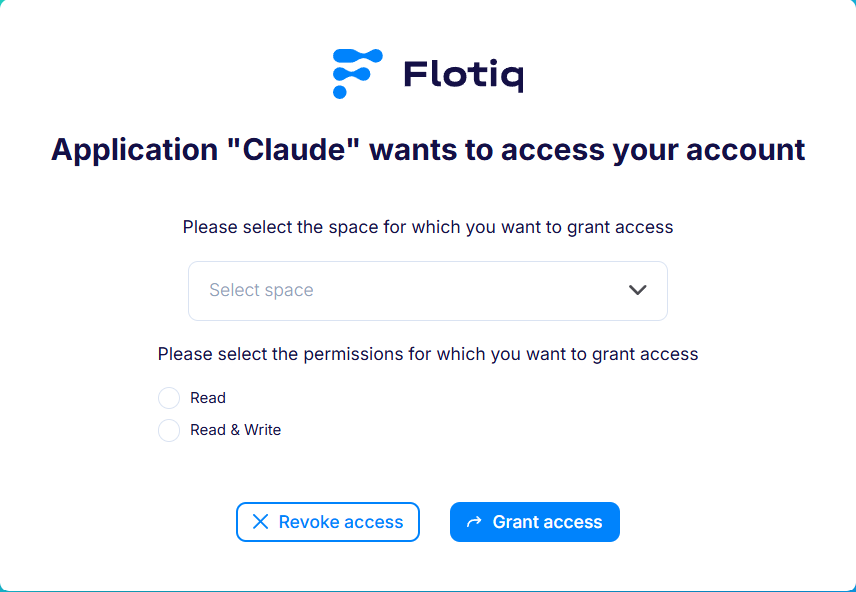
Space - pick the Space the assistant will work with. The connection is bound to that one Space.
Permissions - choose the access scope:
| Scope | Available tools |
|---|---|
Read |
data_efficient_list_ctd, get_content_type, list_objects, get_object |
Read & Write |
all tools, including create_object, update_object, publish_object |
Grant Read unless you actually want the assistant to change your content. This limit is enforced by Flotiq, so it
holds regardless of how your client is configured.
Note
To switch to a different Space or change the scope, reconnect the server in your client and go through the login flow again. You can also add the server twice under different names - for example a read-only connection to production and a read-write one to a test Space.
The assistant acts on your behalf and inherits your permissions within the selected Space.
Most clients support Dynamic Client Registration, so the OAuth Client ID and Client Secret fields can be left empty.
Available tools
| Tool | Access | Description |
|---|---|---|
data_efficient_list_ctd |
read | Lists all Content Type Definitions in your Flotiq account |
get_content_type |
read | Fetches a single Content Type |
list_objects |
read | Lists Content Objects of a given Content Type |
get_object |
read | Fetches a single Content Object by its ID |
create_object |
write | Creates a new Content Object of a given Content Type |
update_object |
write | Updates an existing Content Object |
publish_object |
write | Publishes a draft object so it becomes publicly visible |
Objects created through create_object follow the same Draft & Public
rules as objects created in the Flotiq editor.
Setting up your client
Any other MCP-compatible client will work as well - point it at the server URL above and complete the OAuth flow.
Working safely with write tools
The write tools are available only if you granted the Read & Write scope, and they change content in your Flotiq
account immediately - Flotiq does not ask for a second confirmation. Before you start:
- Require confirmation for write tools. Most clients let you decide per tool whether the model may run it
automatically. Allow
data_efficient_list_ctd,get_content_type,list_objectsandget_object, and require confirmation forcreate_object,update_objectandpublish_object. - Test on a separate Space. Spaces are isolated, so you can experiment without touching production content - just pick the test Space on the login screen when connecting.
- Review the diff. Assistants can misread your data model. Check changed objects in the Flotiq editor.