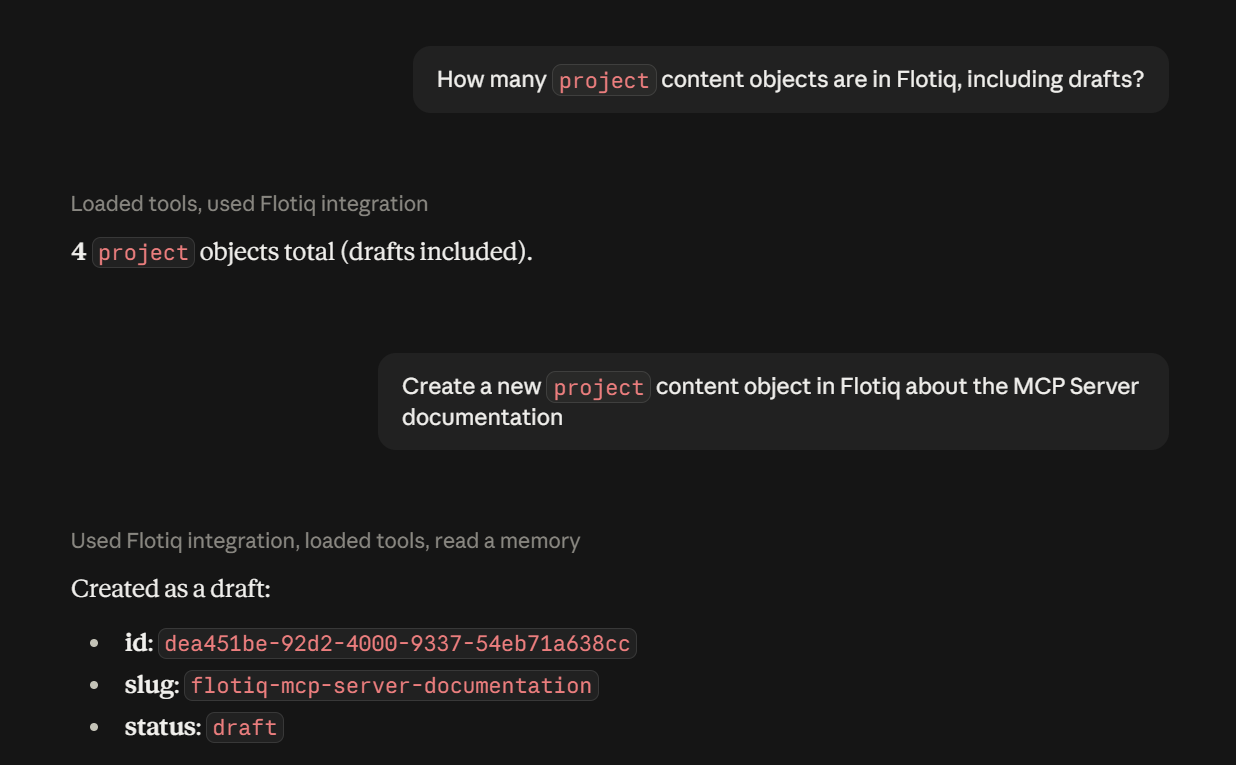
Flotiq MCP Server in Claude
This guide shows how to connect the Flotiq MCP Server to Claude as a custom connector. It works in the Claude desktop app and on claude.ai.
Prerequisites
- Flotiq account
- Claude plan that supports custom connectors
Setup
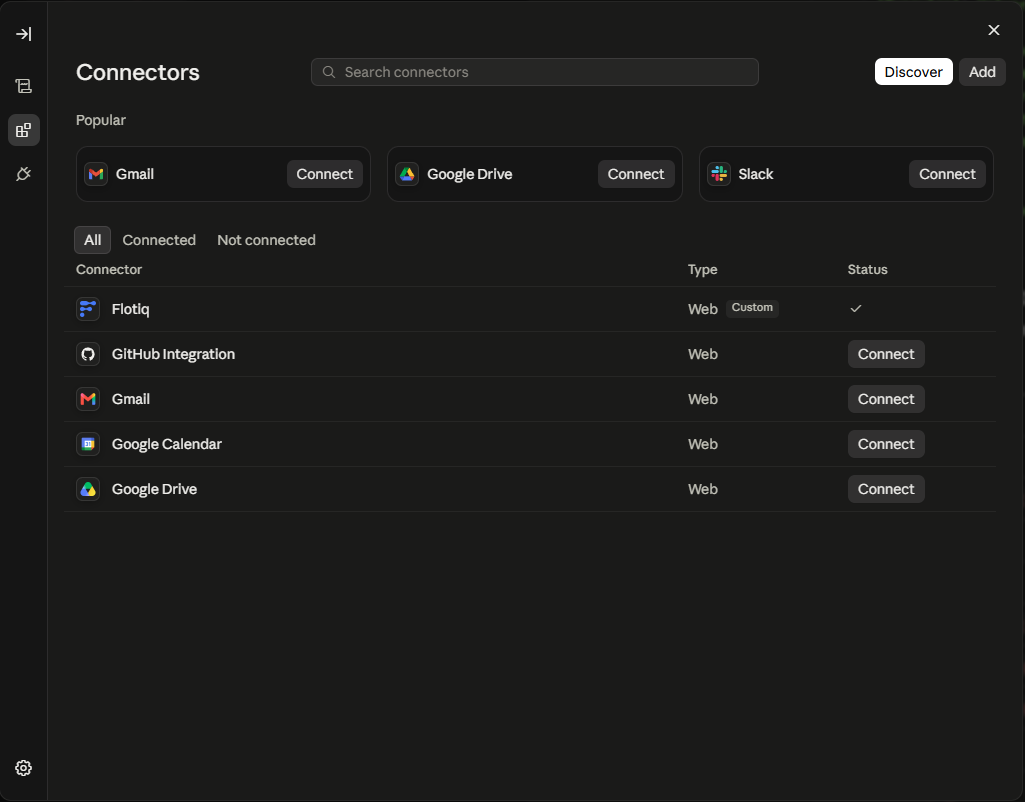
1. Open the connector list
Go to Settings → Connectors and click Add.
2. Enter the configuration
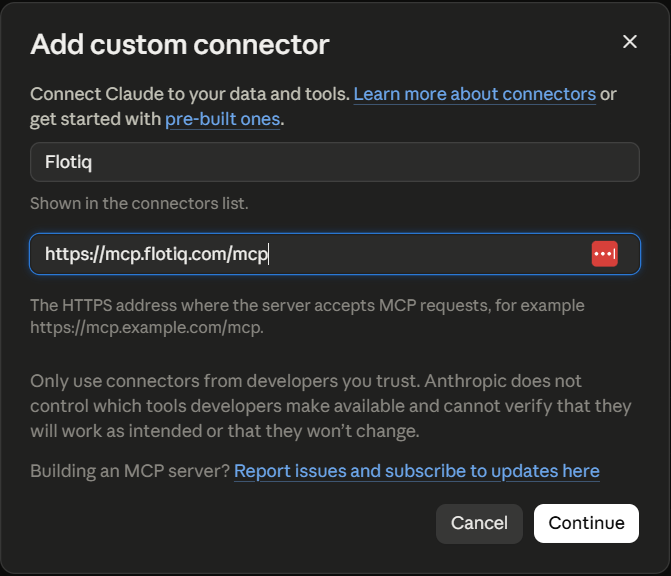
Enter Flotiq as the name and https://mcp.flotiq.com/mcp as the URL, then click Continue.
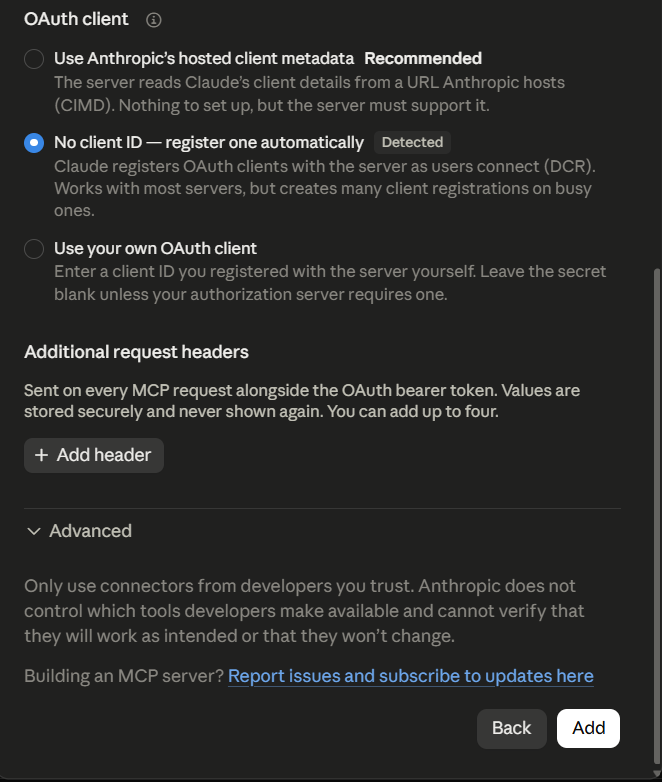
Leave the detected No client ID - register one automatically option and click Add.
3. Connect
Open the connector and click Connect.
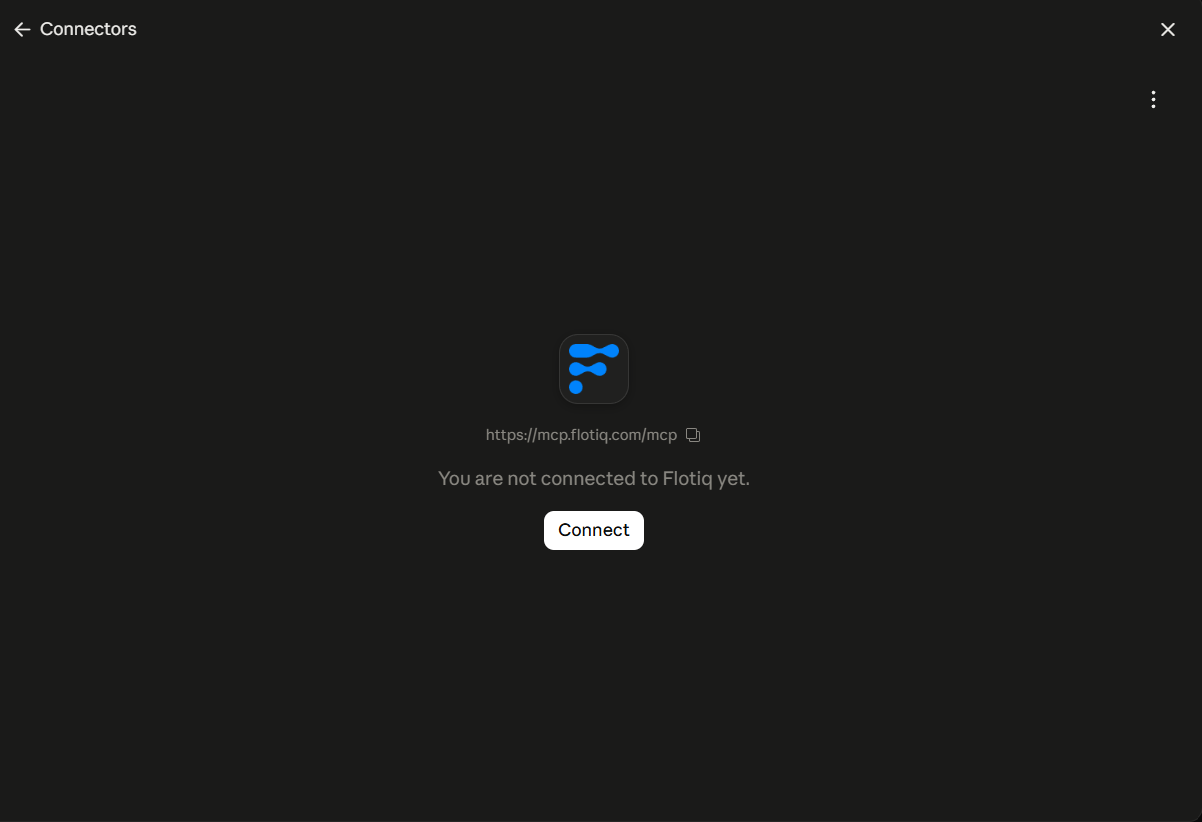
Flotiq takes you through the authorization flow, where you pick the Space and the access scope.
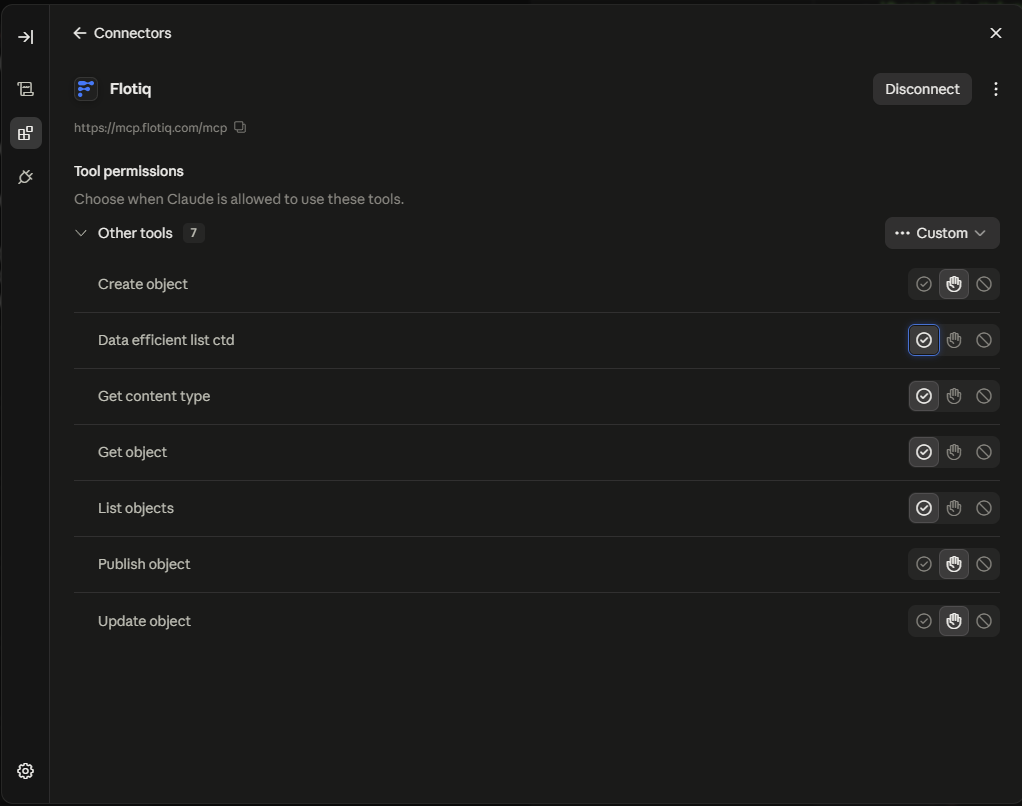
4. Adjust tool permissions
Open the connector in Settings → Connectors → Flotiq and set Tool permissions so Claude cannot change your content without asking. A good starting point:
Using the tools
Ask Claude about your content - it will pick the right tools on its own: