Draft & Public
The Draft & Public mode is designed to manage the visibility of content objects in the system and facilitate the
publishing process.
When enabled, users can utilize statuses such as draft, public, modified, and archived to better organize
content and control its state.
This feature is disabled by default, and all saved content objects will have their status set to public.
Available content statuses
Draft & Public provide a set of content statuses to help teams manage and organize their content. Below is a list of each status with a brief explanation:
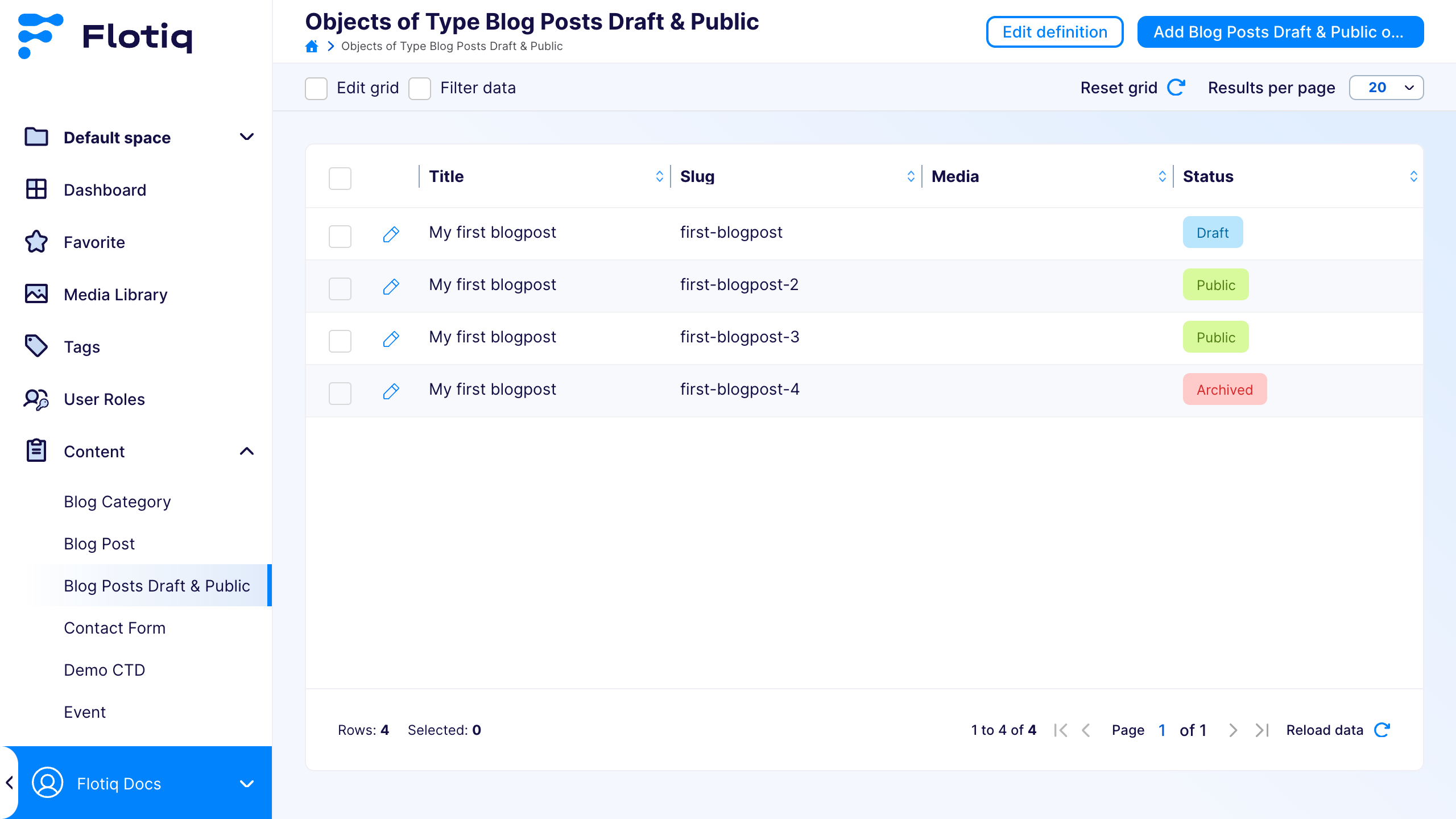
- Draft - The default status for all newly created content objects.
- Public - Indicates content that is ready for production.
- Modified - When a content object with the
publicstatus is edited, a newmodifiedversion is created, while the existingpublicversion remains unchanged. - Archived - Assigned to content that has been withdrawn from the
publicstate.
Status flow
| Current status | Action | Result |
|---|---|---|
draft |
Publish | public |
public |
Edit | modified |
public |
Unpublish | draft |
public |
Archive | archived |
modified |
Publish | public |
modified |
Unpublish | draft |
modified |
Archive | archived |
archived |
Publish | public |
Note
In the Dashboard, all content types will be visible regardless of their status, unlike in the API. Read more about Draft & Public API.
Mass actions
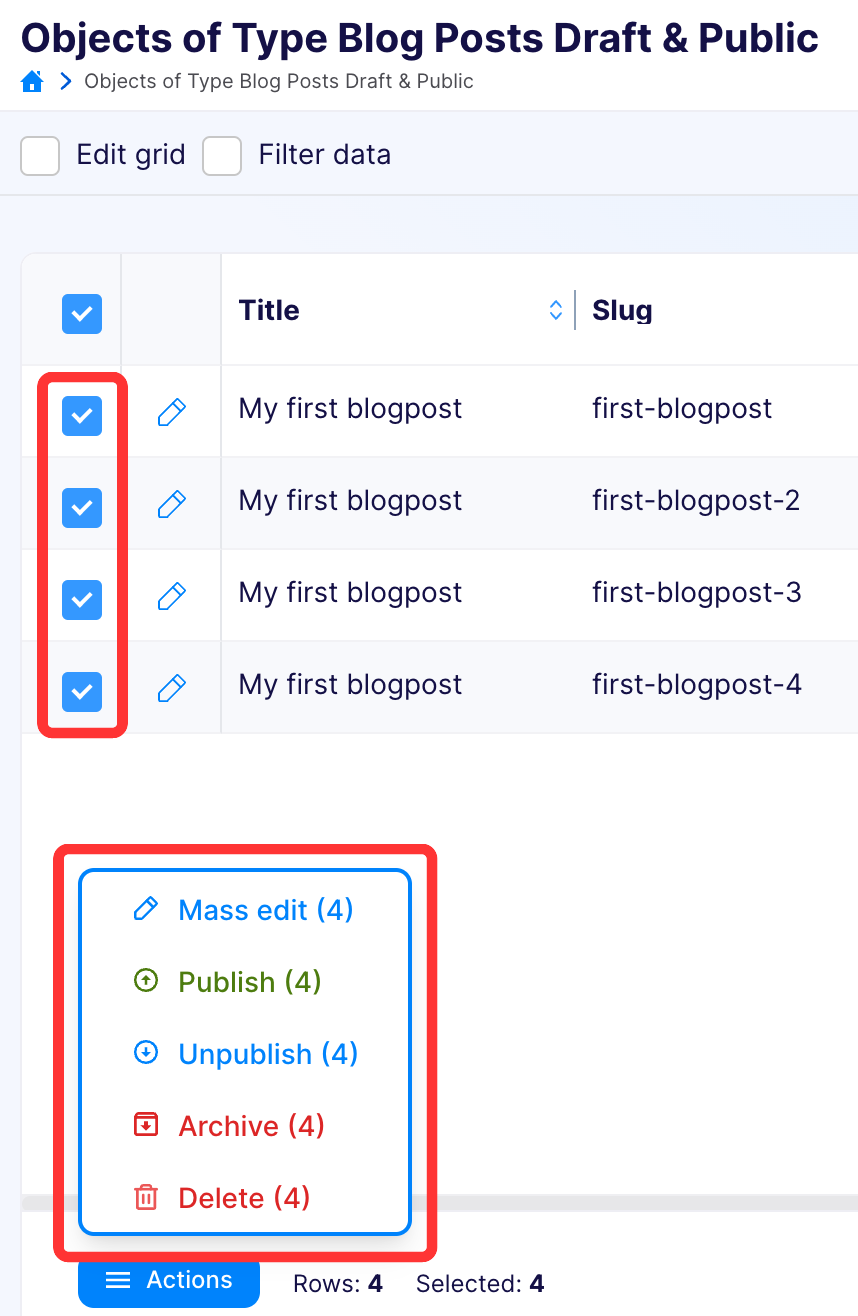
In the content browser, objects of a type with draft & public mode enabled have access to bulk status change options.
Note
A bulk status change to, for example, public will move all selected objects to that state, regardless of their current status.
Publishing content
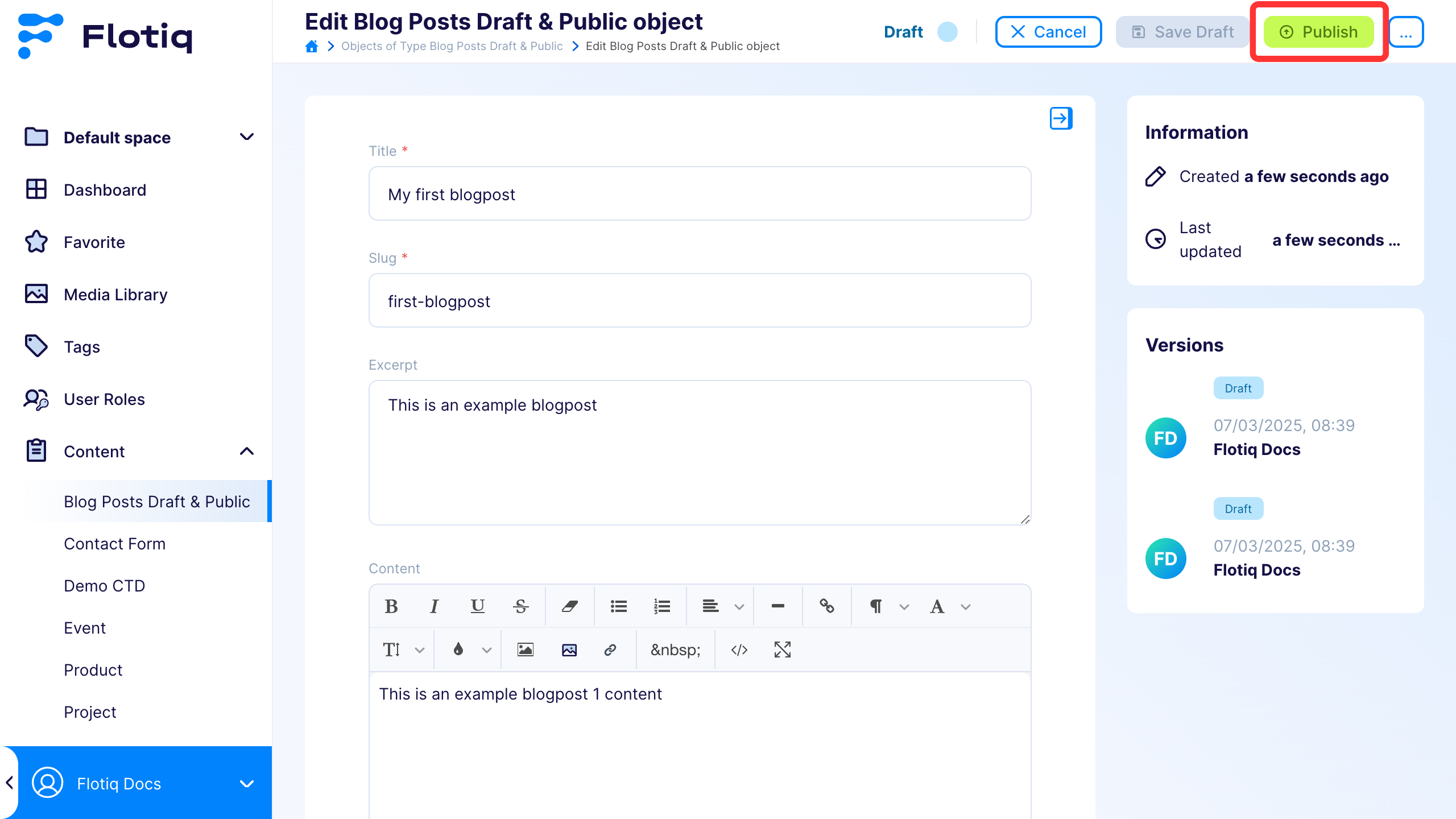
To make an object that satisfies all requirements available to all users, it must be made public. This can be achieved by clicking the green Publish button located in the toolbar.
Note
Now object will have the status public and will be visible, by default in the listing API.
Mass publishing
You can also publish multiple objects by selecting them in the content objects table and clicking Actions and then Publish:
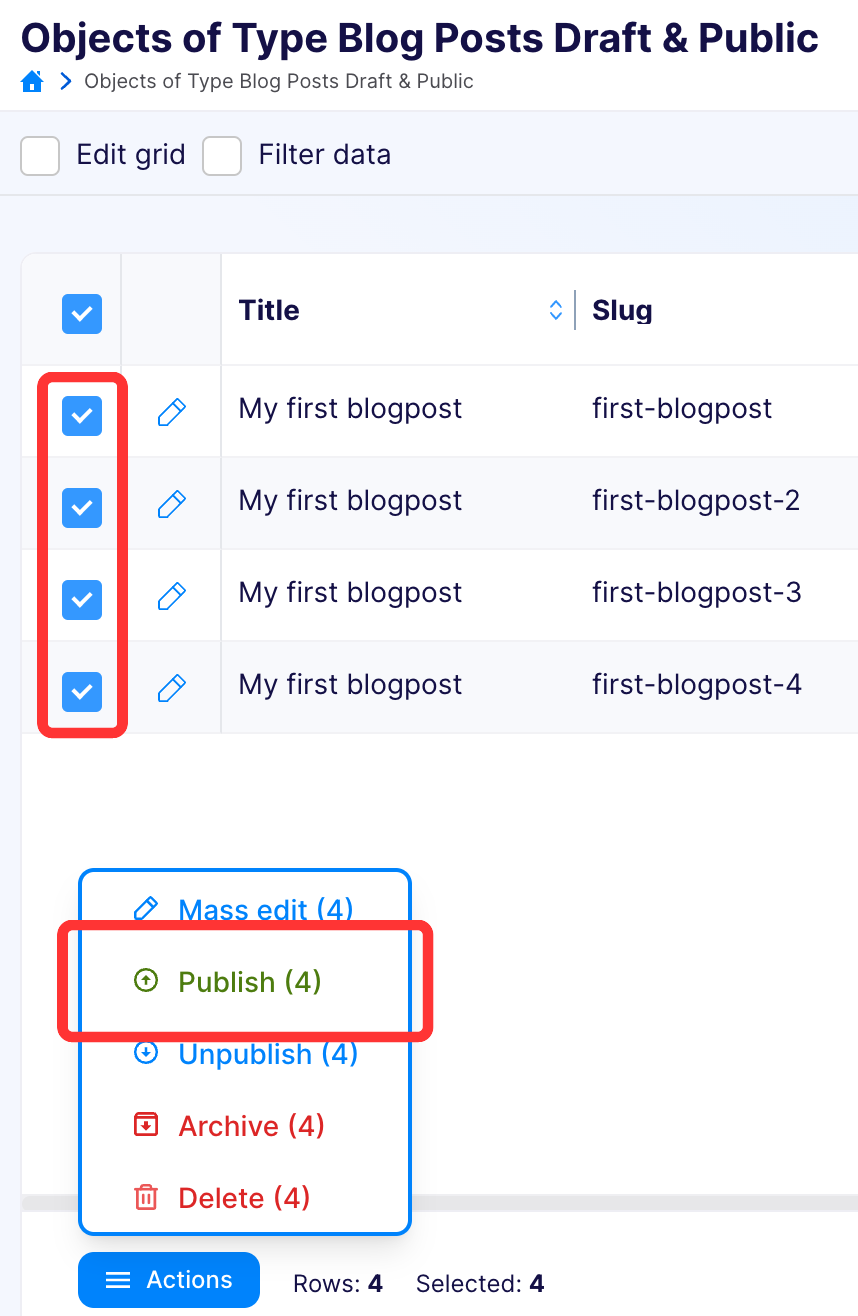
If selected objects have relations to other objects that are not public yet, Flotiq may display an additional warning modal: You have unpublished objects. This means that the selected objects reference content that has not been published yet, and you need to decide how Flotiq should handle those related objects. Read more about this choice in the Cascading publication section.
Note
For a single object, Flotiq may show a detailed list of related unpublished content. For multiple selected objects, Flotiq shows a general message because the full list could be long and difficult to read.
Warning
When you select a large number of objects (>20), Flotiq does not check objects references before publication. Instead, it informs you that you are publishing many objects and asks whether you also want to publish their related unpublished content if such content exists.
Cascading publication
When a Content Object is linked to others using Draft & Public mode, publishing actions can influence linked objects. When initiating the publishing process for such content, a confirmation modal will appear to guide the action. This modal presents two options:
- Publish both the object and related objects – Choosing this option will simultaneously publish the primary content object as well as all linked objects.
- Publish the selected object only – This option restricts the publishing action to the chosen object, leaving all associated linked objects unaffected.
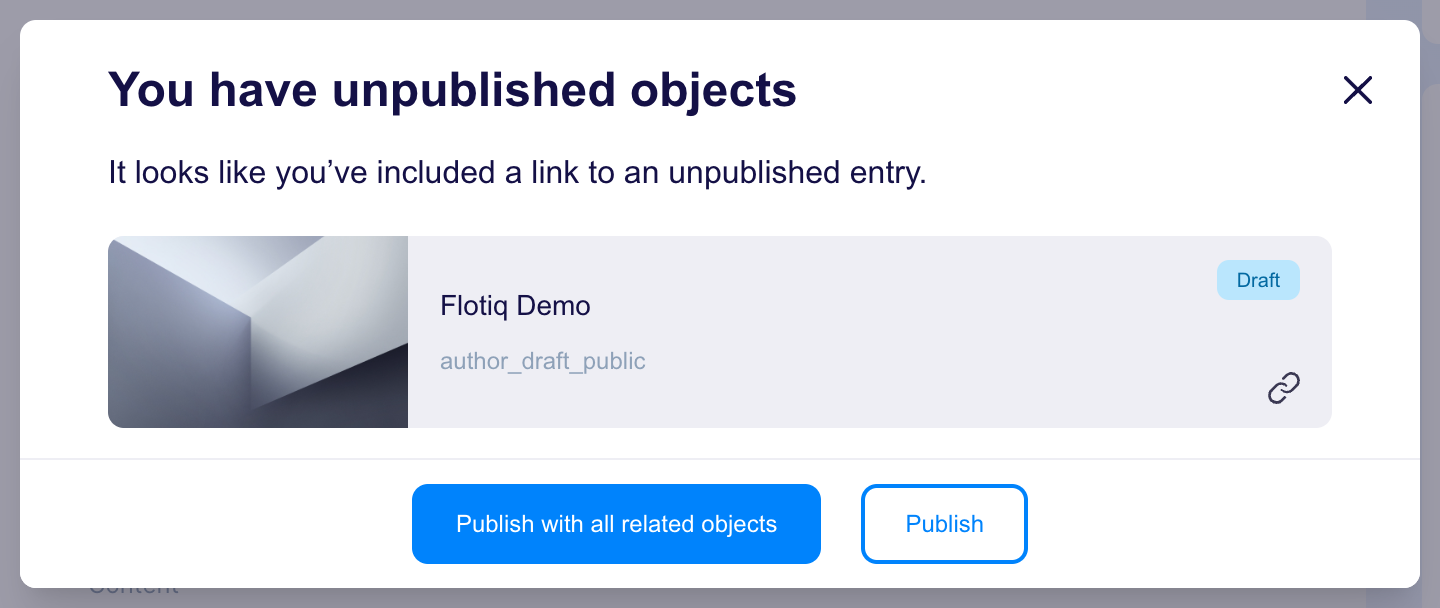
If the confirmation modal is closed without making a selection, no publication action will take place, and the current statuses of all objects will remain unchanged.
The modal appears when publishing an object and has linked objects in states other than public.
Unpublishing content
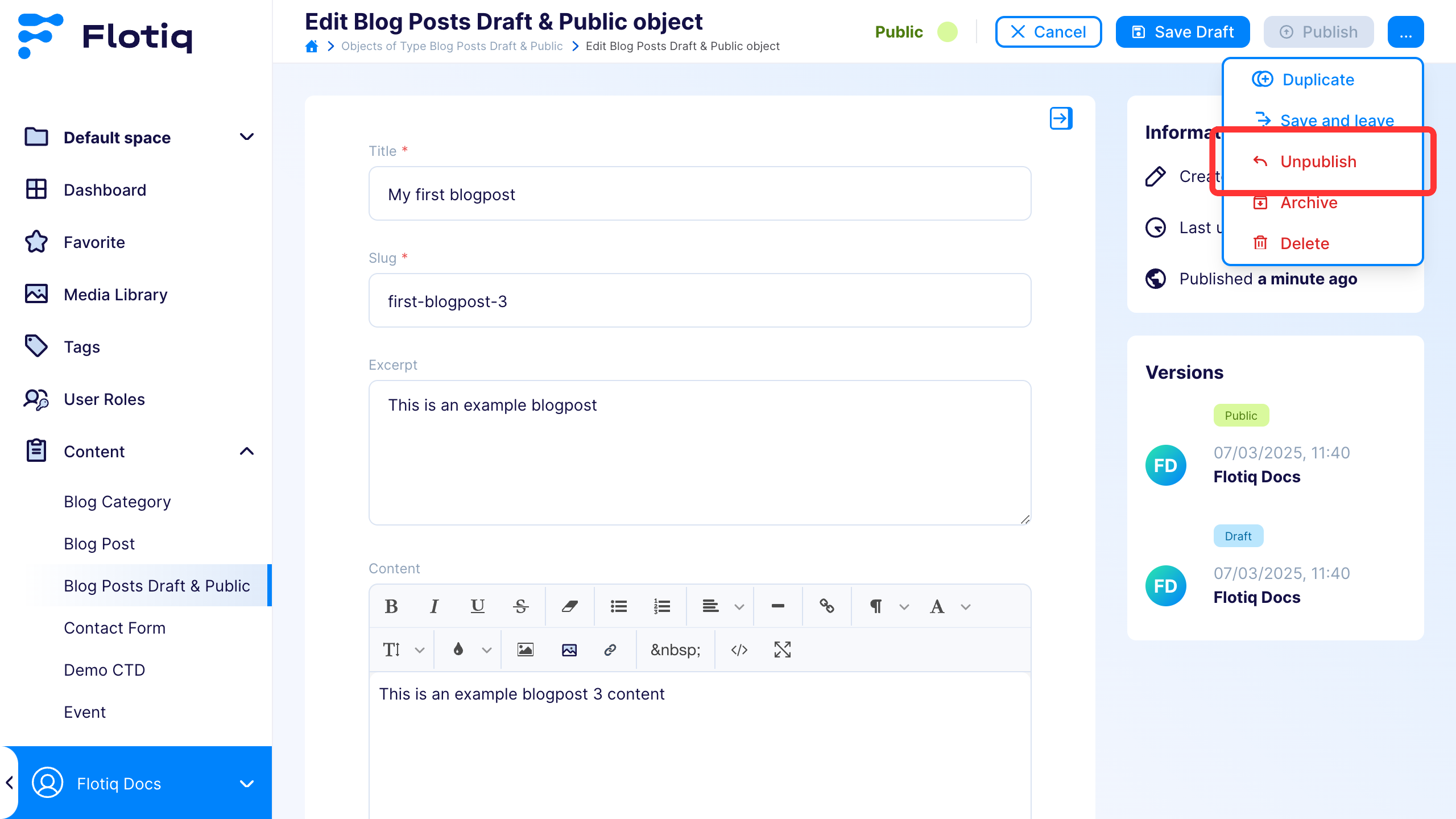
If you wish to revert the public version to a draft to make some adjustments, you can use the Unpublish button located in the Extras menu.
Note
Now object will be reverted from public state into the draft and will not be visible, by default in the listing API.
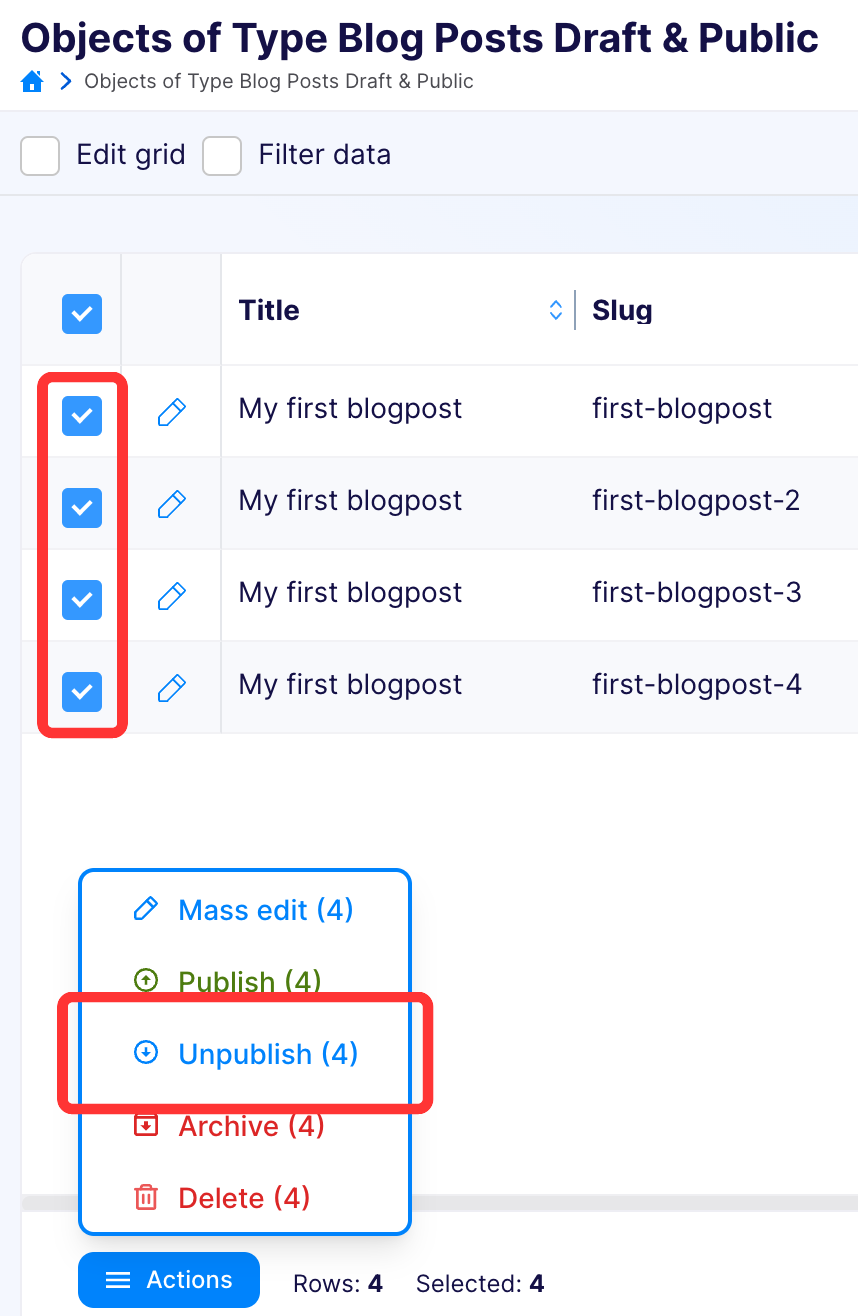
Mass unpublishing
You can also unpublish multiple objects by selecting them in the content objects table and clicking Actions and then Unpublish:
Archiving content
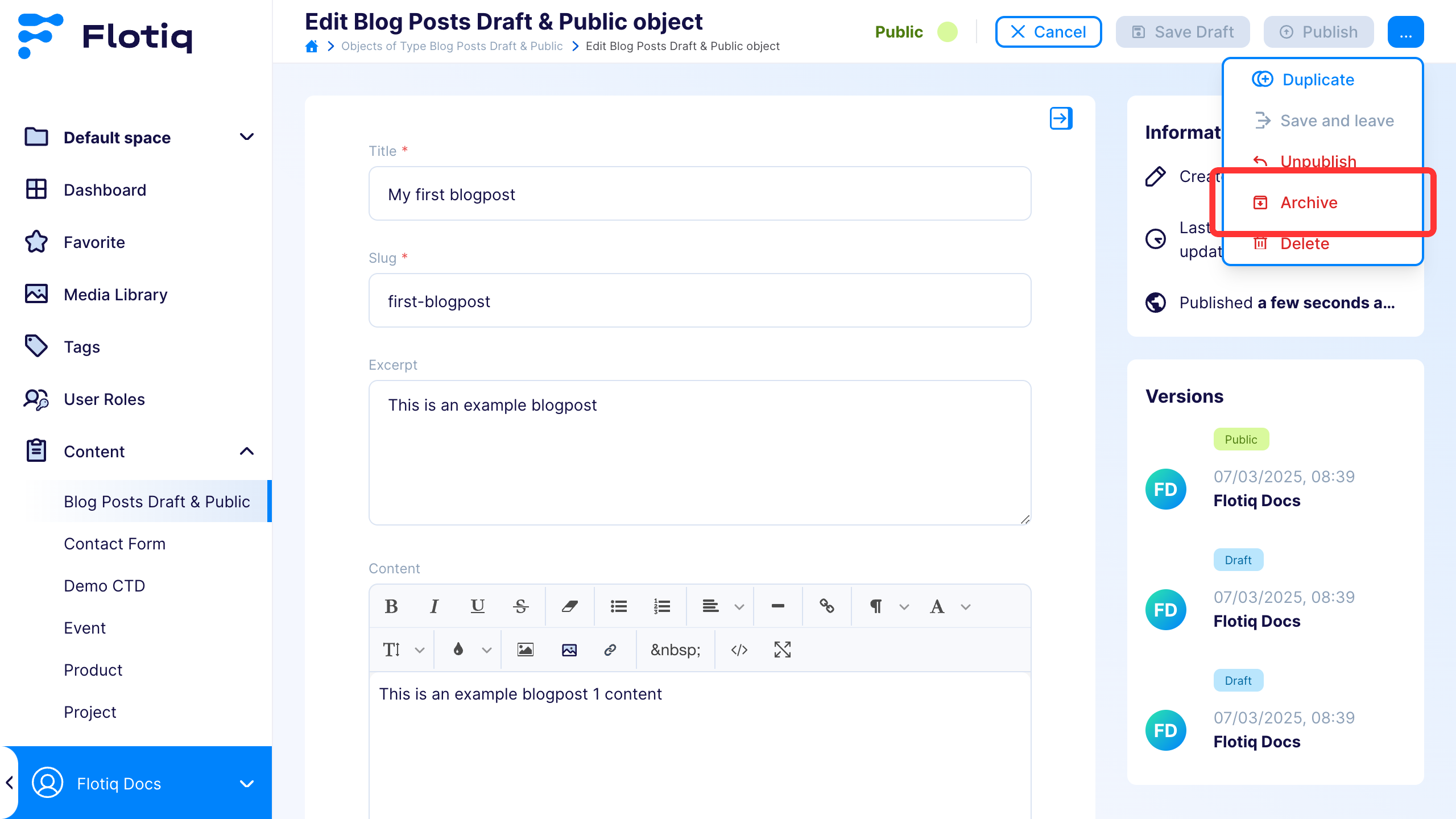
If you wish to archive the public version, withdrawing it from the public state and marking it as archived, you can use the Archive button located in the Extras menu.
Note
Now object will have the status archived and will not be visible, by default in the listing API.
Mass archiving
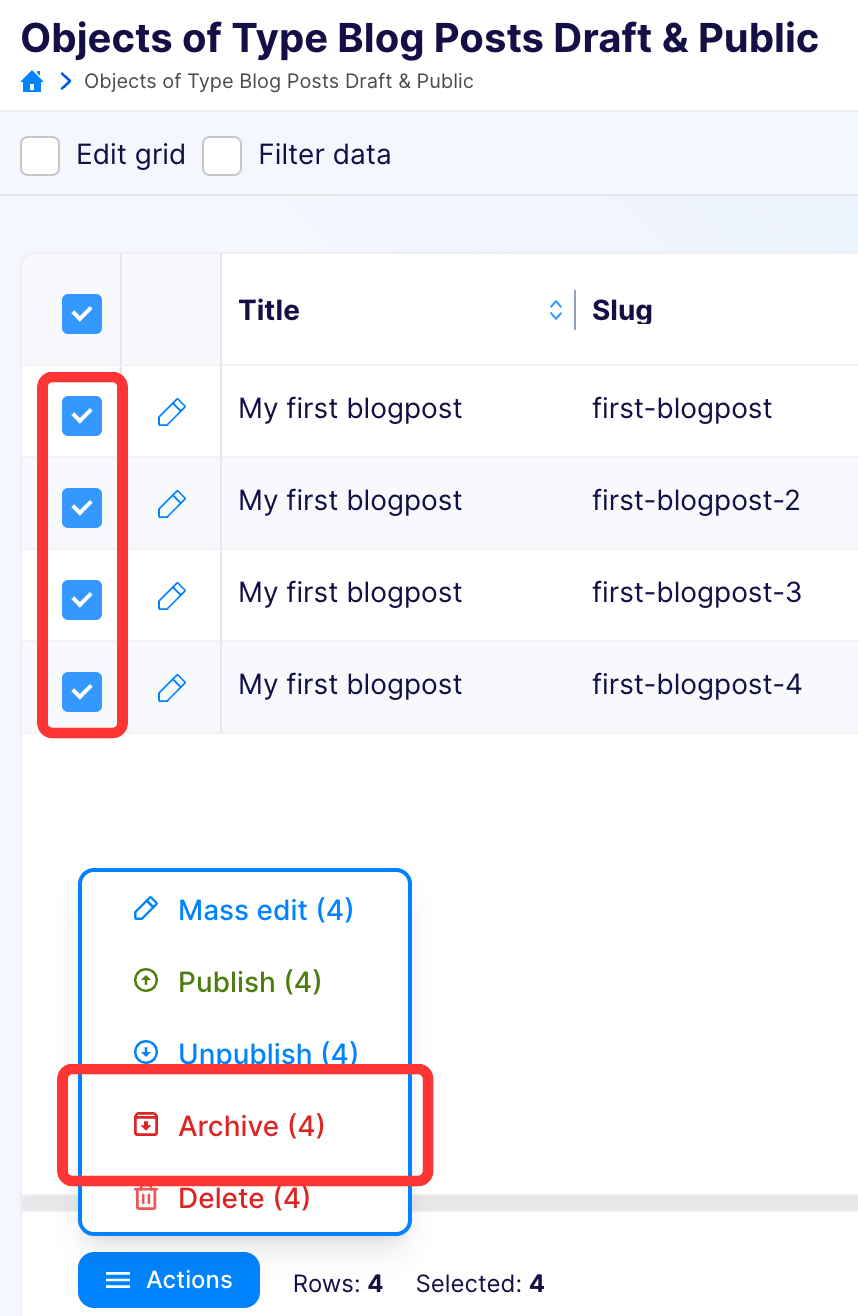
You can also archive multiple objects by selecting them in the content objects table and clicking Actions and then Archive:
Restoring archived content
To restore archived content, use the Publish action on the archived object.
Note
Publishing an archived object changes its status to public.
You can do this from the object form (toolbar) or from the content browser using Actions -> Publish.